Camera interface - Search page
Here you search through surveillance recordings.
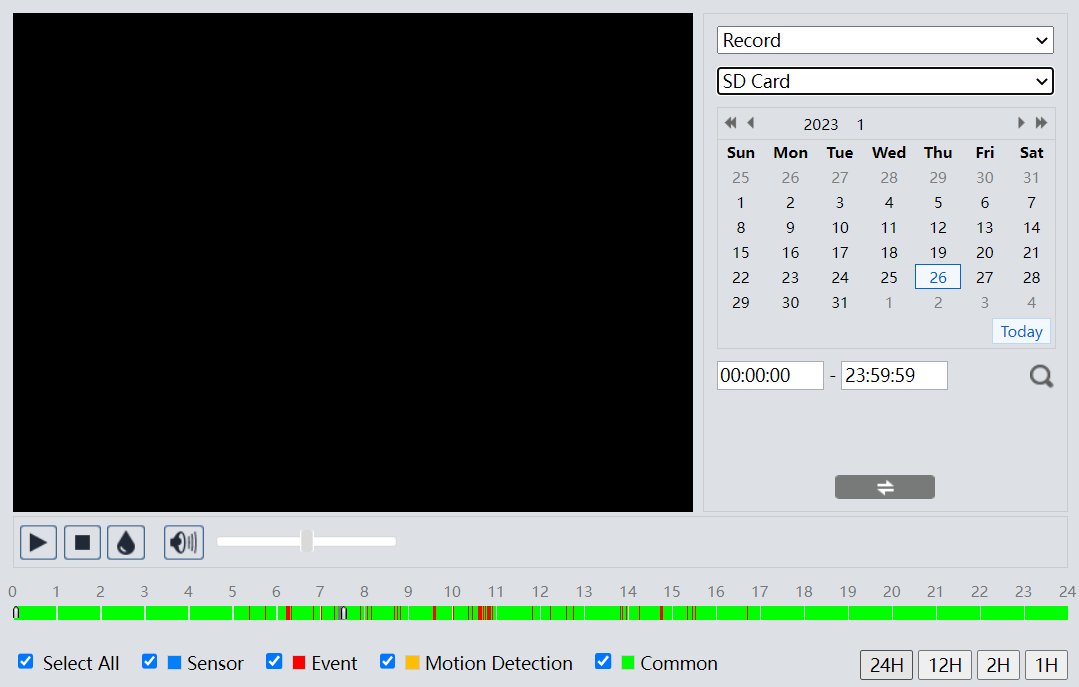
The top left of the screen holds the video playback display. The buttons below the video:
-
Start and stop playback
-
Add a watermark to the video
-
Enable/disable audio and set the volume
Playback
Search detail
The search area at the top right lets you filter by:
-
Images or videos
-
Files stored on the SD card or NVR
-
Specific date and time
Click the search icon to execute the search.
The timeline
The bottom of the screen shows a record of all surveillance activity with files color-coded by type.
To the bottom left, select which surveillance events you want displayed. To the right, bottom select how much time to show in the timeline. Click and drag to pan the timeline.